Your playlists.
Beautifully played.
IPTV M Pro is a fast, remote-friendly player for your own M3U and Xtream Codes playlists: movies, series and live TV with previews, Picture in Picture and resume where you left off.
Mac: macOS 13 Ventura or later, Apple silicon and Intel · Windows: Windows 10 or 11, 64-bit
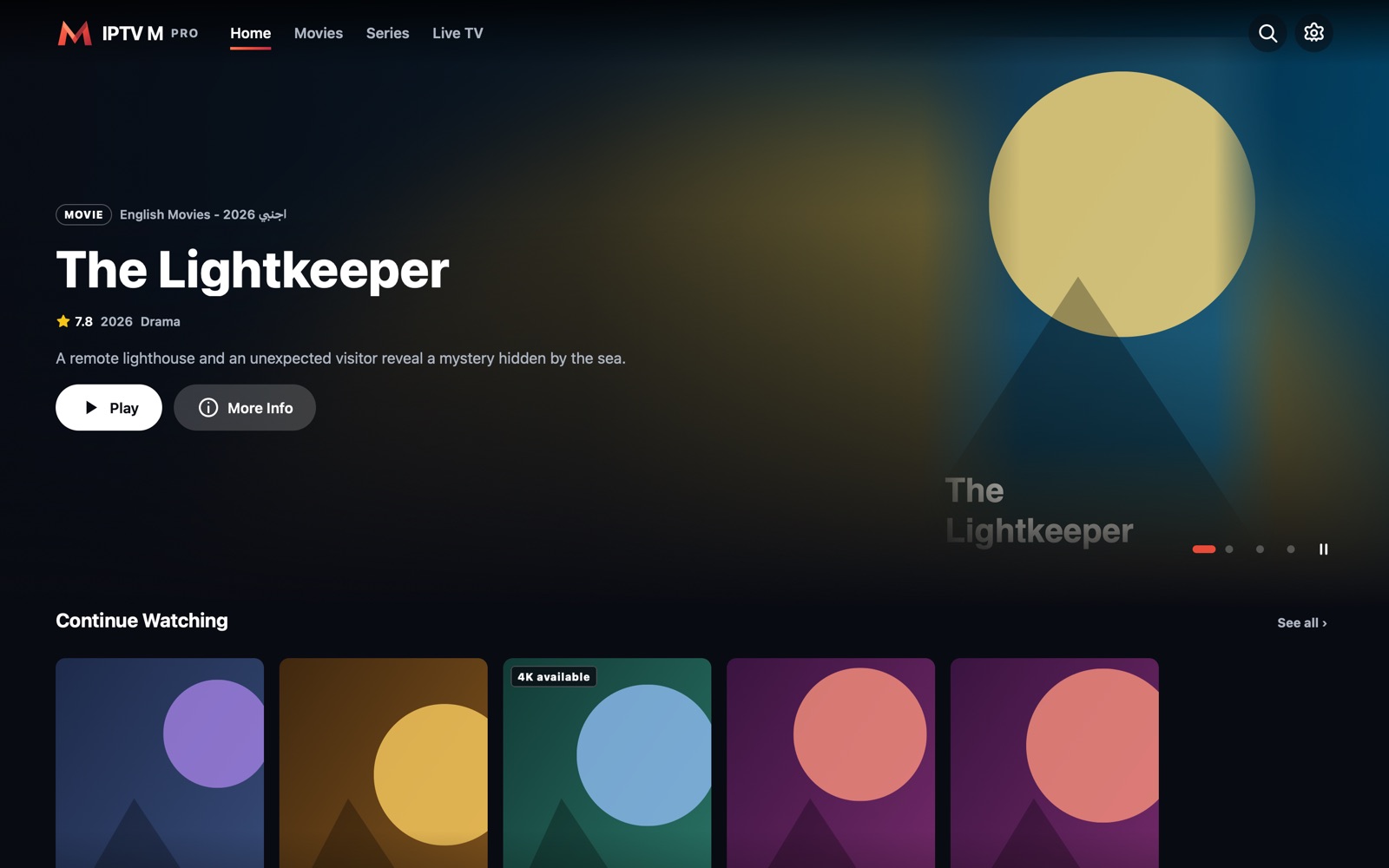
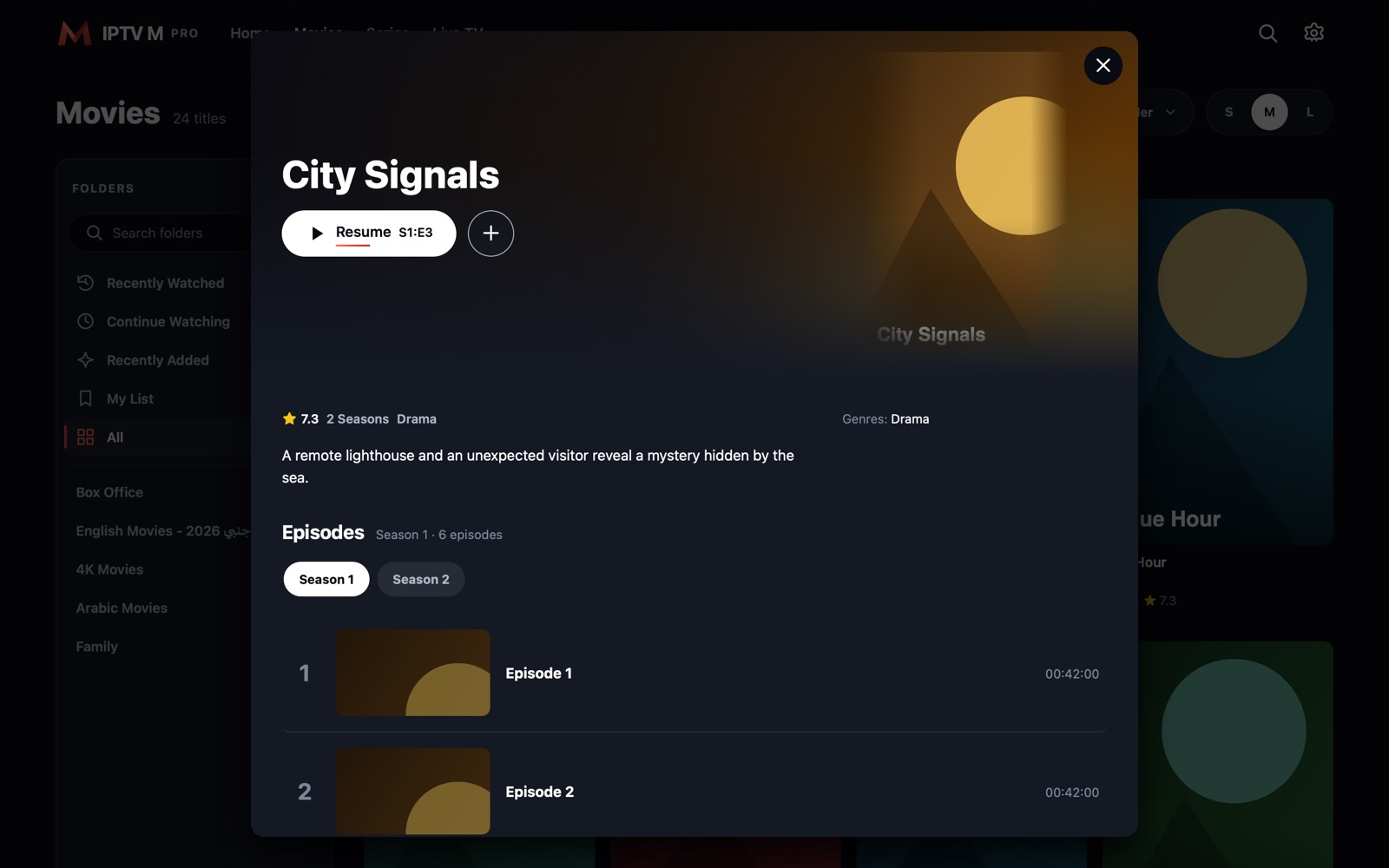
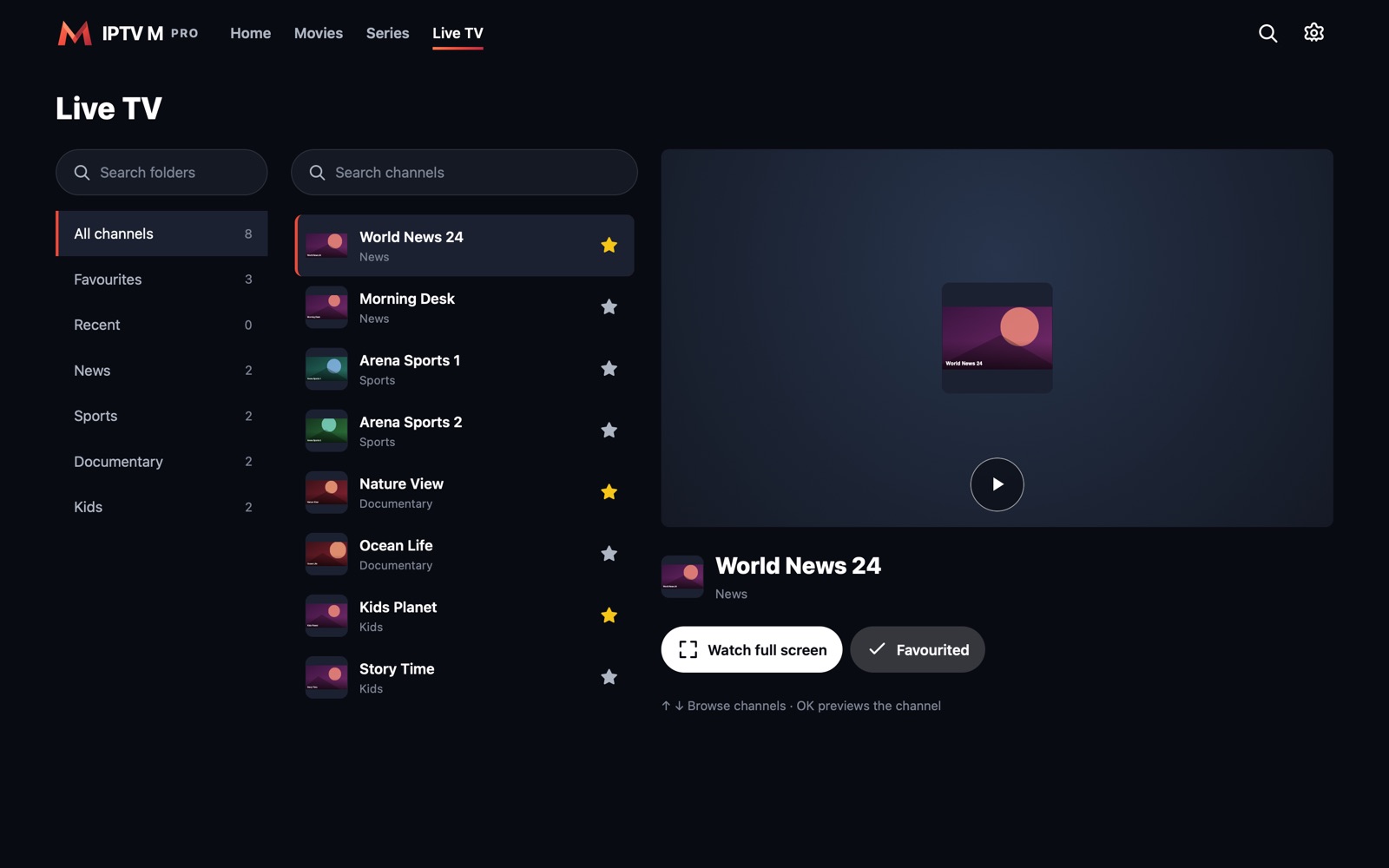
Shown with a demo catalogue. IPTV M Pro does not include any channels or content.
Install
Two minutes, no account needed.
Mac
- Open the downloaded IPTV-M-Pro.dmg.
- Drag IPTV M Pro onto the Applications folder.
- Open it from Applications, or press ⌘ Space and type IPTV M Pro.
- Optional: right-click its Dock icon → Options → Keep in Dock.
Windows
- Run the downloaded IPTV-M-Pro-Setup.exe.
- If your browser asks, choose Keep (Edge: … → Keep → Keep anyway).
- If Windows shows “Windows protected your PC”, click More info, then Run anyway.
- Open IPTV M Pro from the Start menu or the desktop.
Get started
IPTV M Pro plays your own subscription. Have your provider's details ready.
Xtream Codes Recommended
- Open Settings (gear, top right) → Account → Manage playlists.
- Choose Xtream Codes and enter the server URL, username and password from your provider.
- Wait while your movies, series and channels load. Large catalogues can take a minute.
M3U link or file
- Open Settings → Account → Manage playlists.
- Choose M3U, then paste the link from your provider or pick an .m3u file.
- Your channels appear under Live TV; films and series appear when the playlist includes them.
Find your way
- Use the arrow keys (or a remote) and Enter; Esc goes back.
- On Live TV, move through channels to preview them; Enter opens full screen.
- In the player, the Picture in Picture button (top right) keeps the video floating above other apps.
What's new
Mac 1.0.17
- Steadier playback, and a clear message when your provider isn't answering.
- Add to Your Folders: put any Movies or Series folder on Home.
- Picture in Picture stays put: the next episode plays inside it, and it closes quietly at the end.
- Previous and next episode buttons in Picture in Picture; drag it from anywhere, or tuck it into the screen edge.
- The next part of a series follows its last episode, with a countdown.
- Press skip quickly to jump further: 10, 20, 40 seconds and more.
- Cast with photos: pick an actor to see their titles in your playlist.
- Episodes show their own pictures and real names.
- Full-width banners with the title's wide picture and logo.
- Trailers play the official trailer from TMDB.
- Long folder names show in full on two lines.
- Live TV reopens the folder you were in, with folder and channel lists like Movies and Series.
- Live TV waits for you: nothing plays until you pick a channel, and changing folders keeps it playing.
- Trailers play inside the app.
- Picture in Picture controls hide when the mouse leaves, with a seek bar for films and episodes.
Windows 1.0.10
- Live TV reopens the folder you were in, with folder and channel lists like Movies and Series.
- Live TV waits for you: nothing plays until you pick a channel, and changing folders keeps it playing.
- Trailers play inside the app.
- Picture in Picture controls hide when the mouse leaves, with a seek bar for films and episodes.
Help
“The server did not accept this username and password”
Check the details for typos first. If they are correct, the provider has not activated the account or gave the wrong server address. Send your provider:
My subscription is not working: the server rejects my username and password. Please check that it is active and send me the correct server URL.
Where do I get channels or a subscription?
From any provider you choose. IPTV M Pro is a player only: it does not provide, recommend or sell any content.
A channel or film does not play
Check that your subscription is active and that the stream works in another player. Many subscriptions allow only one connection at a time, so stop playback on your other devices. On a slow connection, turn on Settings → Playback → Weak internet mode.
Is the Windows warning safe to skip?
Yes. Windows shows it for new apps that are not yet code-signed. Download the installer only from this page.
How do I update?
Download the latest version from this page and install it over the old one (on Mac, choose Replace). Playlists, favourites and progress are kept.
Where are my playlist details stored?
Only on your device. They are never sent to us. See the Privacy Policy.
Still need help?
Email msupport992@gmail.com with your device, the app version (Settings → About) and what happened. Please never send your playlist password.